This page details how the app is used and what should happen at each step.
Reference selection
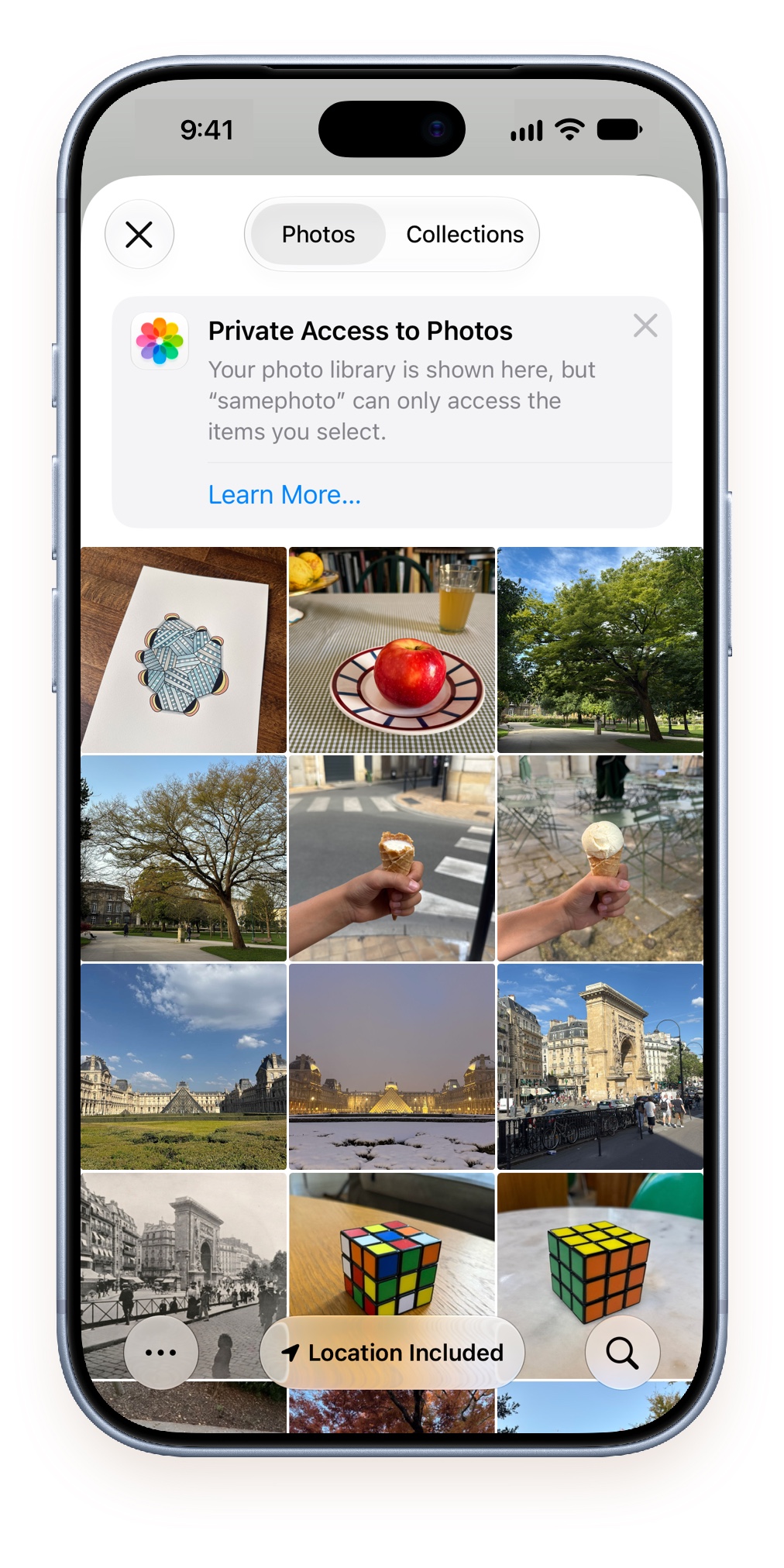
At launch, the app presents you the possibility to open your photo library where you can pick the reference image. This photo library access by the app is limited for privacy: the app can't have access to your photo collection, but will only process the photos you actively select. This is what Apple calls "Limited Photos Library" and made available to developpers who wish to respect users privacy.
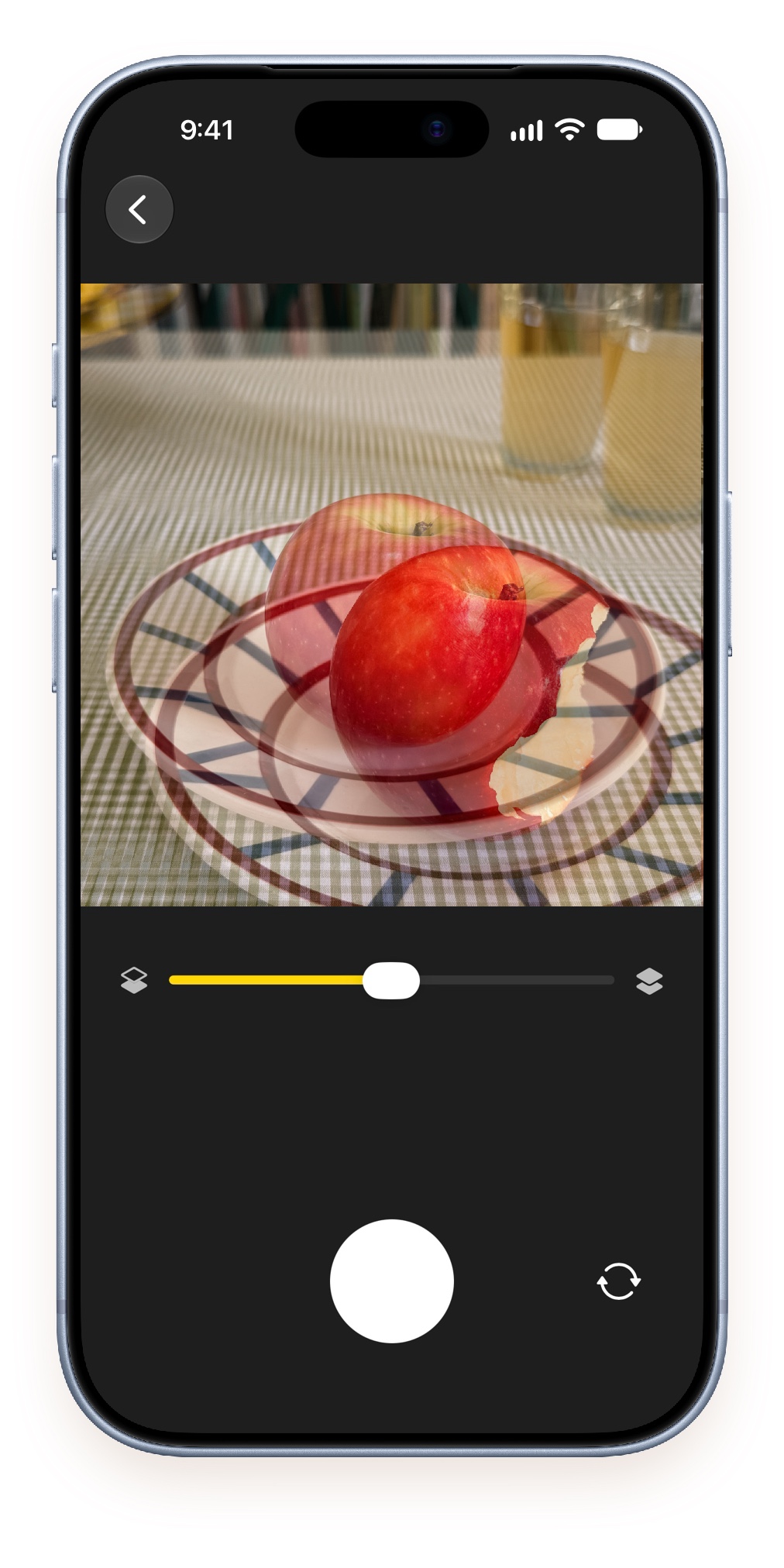
Adjusting the overlay opacity
Using the slider below the camera preview, you can adjust the presence of the reference photo to make it easier for your to match the framing. Sliding to left will make the reference more and more transparent, sliding to the right will make it more and more opaque.
The front camera can be used by touching the bottom right icon.
Evaluating the shot
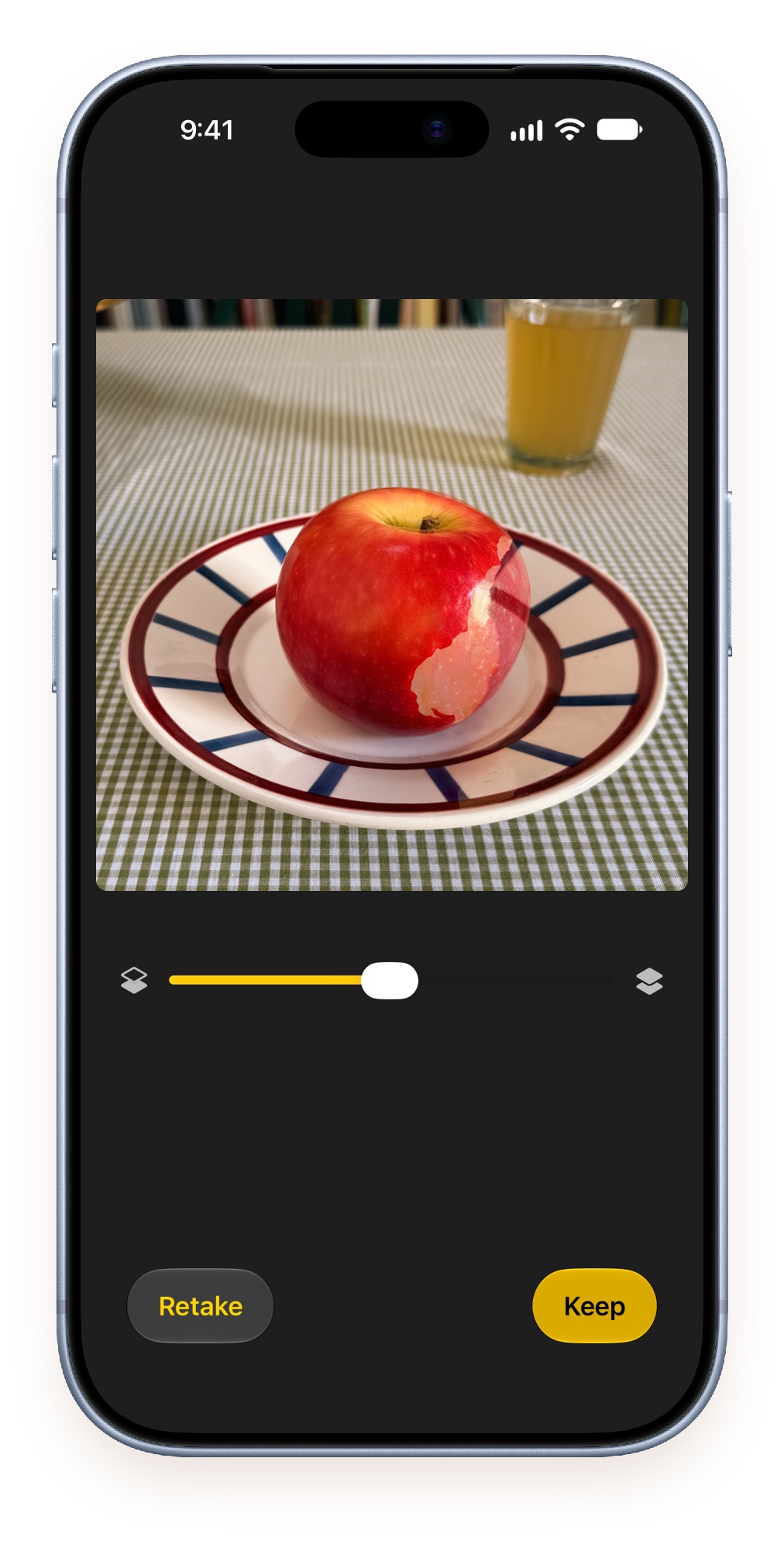
Once the new photograph has been taken, you get the possibility to evaluate it using the slider. If you need to correct your framing, tap the bottom left button to comeback to the camera preview overlayed with the reference image. If you're happy with the result, tap the bottom right button to save the new photo in your Photos library.
Confirmation and sharing
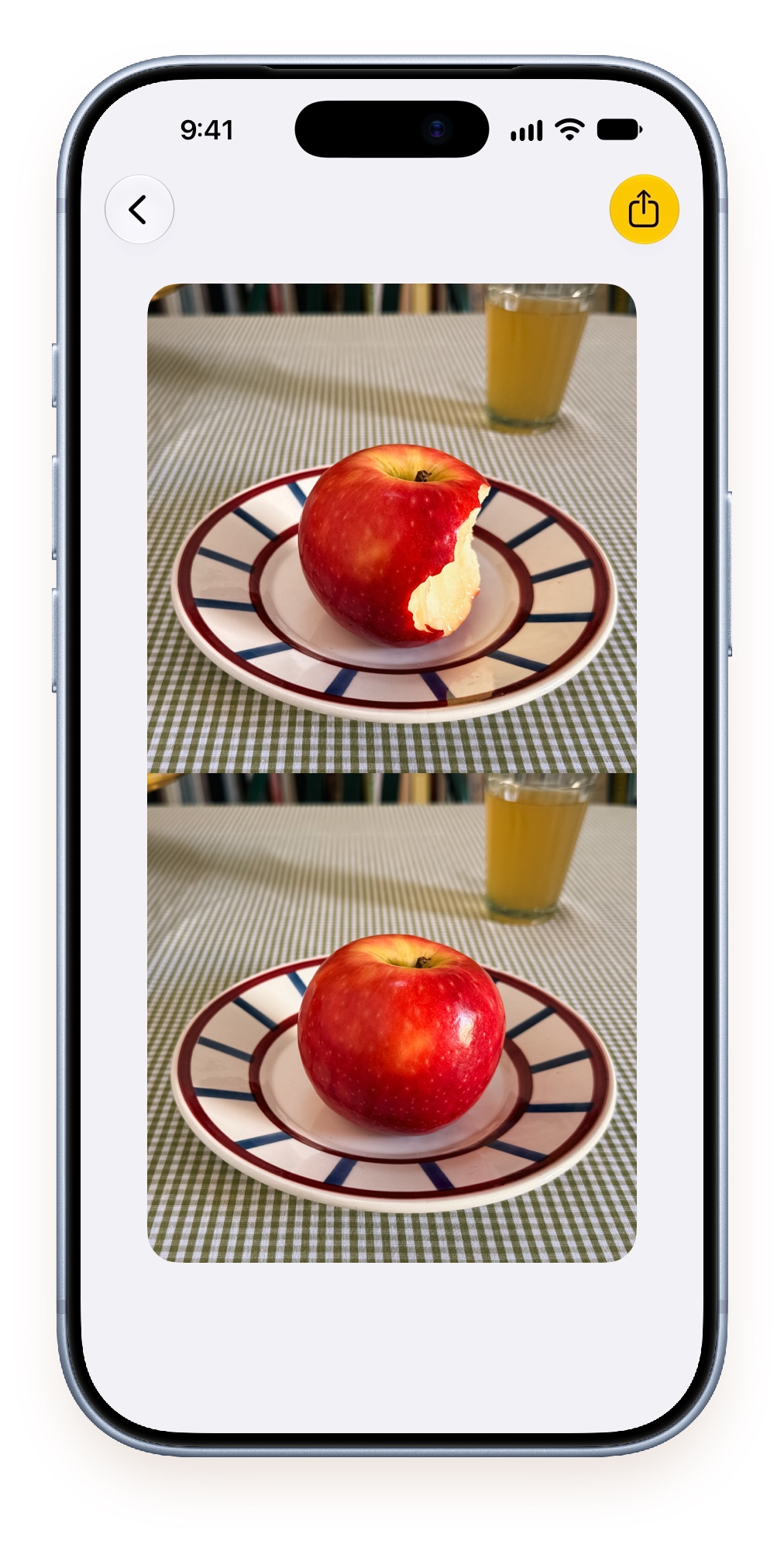
At this point, the new photo is saved in your Photos library. Also saved is a composite photo with both images on top of each other. This composite can be shared from the app using the top right button.
Going back will get you to the reference photo selection screen so you can start again the process for a new image.
In case of malfunction
Contact us with email: contact at domain name
It's best to describe precisely what happened before the problem occurred, to tell if it happened more than once, and to add your device model name plus iOS version. Thank you.